Free LinkedIn tool
LinkedIn Post Formatter
Write or paste your post, select the words that need emphasis, and copy the finished version. You can also add symbols and check the opening before you publish.
Your post
Write, format and copy
How it works
- Paste your whole LinkedIn post into the box.
- Highlight the words you want to change.
- Click Bold, Italic or Bold italic.
- Click Copy finished post.
Paste your whole post into the box to begin.
No text selectedYour text stays in your browser. Prepare2Lead does not save it.
A real example
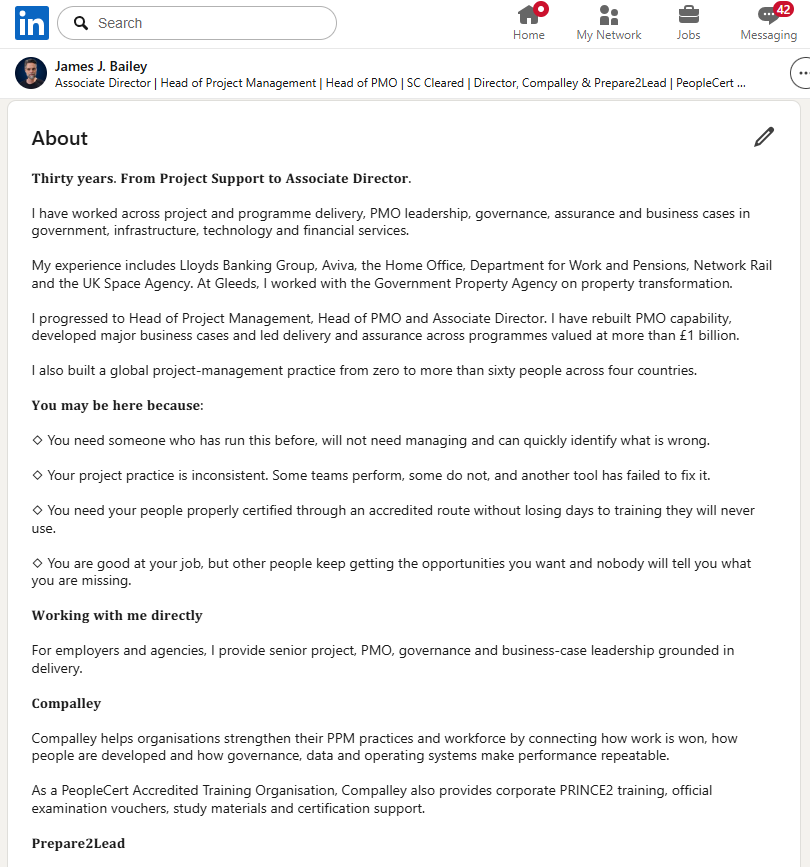
See the formatting on LinkedIn
The formatting remains visible when you paste the text into a LinkedIn post. You can also use it in your About section and other editable profile text.

Formatted text does not get you hired. What the words say does.
Most project people write their LinkedIn as a job description. What they were asked to do, who they reported to, what the team delivered. Nowhere does it say what they personally owned, or what would have gone wrong without them.
So the recruiter reads it, finds nothing to put forward, and moves to the next profile. No rejection, no message, just a shortlist you were never on.
I spent 30 years running projects in government, rail, space and banking, and I decided who got hired. I rewrite your CV and LinkedIn around your project delivery: what you owned, who depended on it and what changed because of you. That gives the recruiter clear evidence to put you forward.